How to Run AI Coding Tools Safely Inside Docker Containers
One command to sandbox Claude Code, Gemini CLI, or Codex CLI in Docker.
Feb 23, 2026 · 5 minutes read · Follow @luixaviles
I’ve been using AI coding agents (Claude Code, Gemini CLI, Codex CLI) to refactor and write code across different projects. They work well. But every time I ran one code agent, I kept asking myself: can this agent run autonomously without risking access to my SSH keys, my cloud credentials, or even other projects content?
I wanted the productivity gains without the risk, so I built nebubox: a CLI tool that runs each AI coding agent inside a Docker container where only your project directory is visible. You get full capabilities but a strict limit on what files the agent can reach.
In this post, I’ll explain why unrestricted AI agents may be a problem, how nebubox solves it, and how to use it in your own projects.
The Problem: AI Agents With Unrestricted Access
To unlock full autonomous mode, each tool requires a flag that the authors named to make you pause before running it:
claude --dangerously-skip-permissions
gemini --approval-mode=yolo --sandbox=false
codex --dangerously-bypass-approvals-and-sandbox
Those flag names are not accidental. They are warnings. When you enable them, the AI agent may read and write anything your user account can access. Here is the key insight: inside a Docker container, those same “dangerous” flags become “safe” because the container is the sandbox. The agent has full permissions within an environment that can only see your project files. That is what nebubox sets up for you.
But first, let’s look at what can go wrong without that boundary:
- Credential exposure. The agent may read
~/.aws/credentials,~/.ssh/id_rsa, or~/.envfiles that contain API keys and secrets. Nothing stops it from logging or transmitting those values. - Unintended file modifications. A hallucinated command modifies files outside your project: shell configs, other repositories, system settings.
- Accidental deletions. A misinterpreted instruction runs
rm -rfon the wrong directory. No confirmation prompt, no undo.
How Nebubox Works
Nebubox creates a Docker container for each tool-and-project combination. Your project directory is bind-mounted into the container at /home/coder/workspace. Everything else on the host filesystem is invisible.
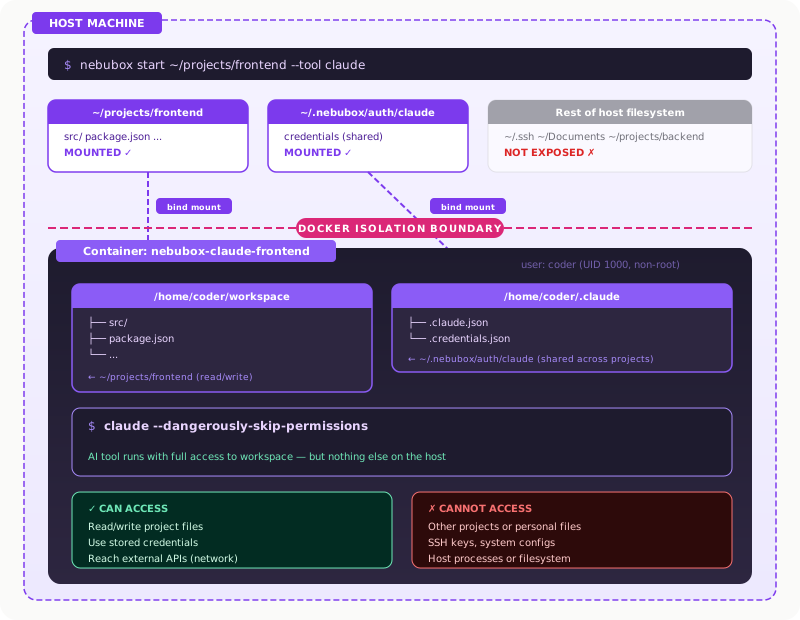
A few things worth knowing about how it works:
- Project isolation. Only the target project directory is mounted at
/home/coder/workspace. No access to~/.ssh,~/Documents, or other projects. - Non-root execution. Containers run as a
coderuser (UID 1000) with passwordless sudo, matching the typical developer setup without running as root. - Credential persistence. Each tool’s auth tokens are stored in
~/.nebubox/auth/<tool>/on the host and mounted into the container. Authenticate once, reuse across all projects. - Dynamic image generation. Nebubox generates a Dockerfile per tool profile, building from
node:24-bookworm-slim. No manual Dockerfile maintenance required. - Container naming. Containers follow the pattern
nebubox-<tool>-<project-dir>, so you can run multiple tools and projects in parallel without conflicts.
Getting Started
Let’s set it up. You’ll need Node.js 22+ and Docker, both installed and running.
Install nebubox globally:
npm install -g nebubox
Or run it directly with npx:
npx nebubox@latest start ./my-project
Before starting a container for the first time, build the Docker image for your tool:
nebubox build claude
You can also run nebubox build without arguments and it will prompt you to select a tool interactively. This step downloads the base image, installs the AI tool, and sets up the container user. It only needs to happen once per tool.
Running Your First Sandboxed Agent
Start a container for a specific project and tool:
nebubox start ./my-project --tool claude
When you run this, nebubox:
- Checks if the Docker image for the tool exists (builds it if needed).
- Creates a container named
nebubox-claude-my-projectwith your project mounted at/home/coder/workspace. - Mounts the tool’s auth directory (
~/.nebubox/auth/claude/) so credentials persist. - Drops you into an interactive bash shell inside the container.
- Prints a hint showing how to launch the AI tool.
If you omit the --tool flag, nebubox presents an interactive prompt to select from the available tools.
Once inside the container, you’ll see something like:
coder@nebubox-claude-my-project:~/workspace$
Only your project files are visible. Run ls /home/coder/ and you’ll see just workspace and the tool’s config directory. Nothing from your host home folder.
The first time you use a tool, you’ll need to authenticate inside the container (e.g., claude login for Claude Code). After that, the credentials are saved to the host and reused by any future container for that tool.
When you exit the shell, the container keeps running in the background. Reconnect anytime:
nebubox attach nebubox-claude-my-project
Managing Containers
Nebubox provides commands to manage the lifecycle of your containers:
# List all managed containers
nebubox list

# List only Gemini containers
nebubox list --tool gemini

# Stop a running container
nebubox stop nebubox-claude-my-project

# Remove a container entirely
nebubox remove nebubox-claude-my-project
Auth tokens persist in ~/.nebubox/auth/<tool>/ even after you remove a container. You won’t need to re-authenticate when you create a new one.
Supported Tools
Nebubox ships with profiles for three AI coding tools:
| Tool | Launch command inside container |
|---|---|
| Claude Code | claude --dangerously-skip-permissions |
| Gemini CLI | gemini --approval-mode=yolo --sandbox=false |
| Codex CLI | codex --dangerously-bypass-approvals-and-sandbox |
Each tool is defined by a profile that specifies its installation method, auth directory, and environment variables. Adding support for new tools means adding a new profile, no changes to the core logic.
Source Code
Find the complete project in this GitHub repository: nebubox. Do not forget to give it a star ⭐️ and play around with the code.
Conclusion
You can run these agents at full capability without exposing your entire machine. Nebubox wraps each tool in a Docker container where only the project directory is visible, host secrets stay out of reach, and credentials persist across sessions. If you use these tools regularly, give nebubox a try. It takes a few minutes to set up and you won’t have to think about what the agent can reach.
You can follow me on Twitter and GitHub to see more about my work.
Thank you for reading! — Luis Aviles